Using the app
Alarm center
Two kinds of alert share one widget. Price alarms fire on levels you thought of in advance. The cascade alert fires on the one you did not.
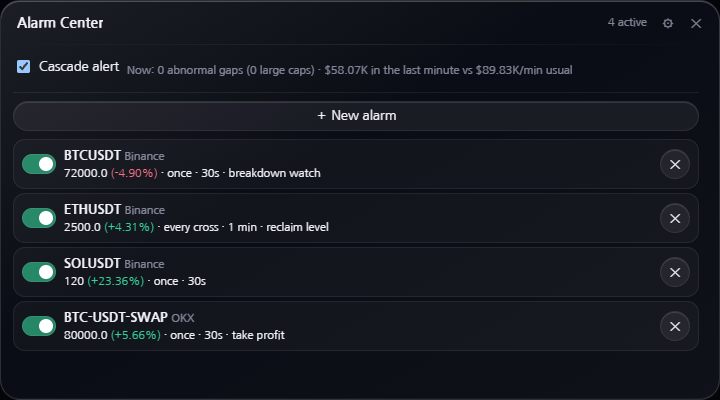
Price alarms
These cover the levels you already have in mind — a line you are waiting on, a place you want to hear about rather than watch for. The terminal holds them so you do not have to keep the chart in front of you.
Press New alarm to open the form. It stays collapsed the rest of the time so the widget shows your list rather than an empty form.
| Field | What it does |
|---|---|
| Exchange and symbol | Binance or OKX, then the contract. The field suggests from the tracked universe as you type. |
| Target price | The level to watch. Now fills in the current price as a starting point. |
| Once / every cross | Once fires one time and switches itself off. Every cross keeps firing each time the level is crossed in either direction. |
| Ring duration | How long the sound repeats, from ten seconds up to until you dismiss it. |
| Sound and volume | A built-in tone or one of your own uploaded clips, with a preview button. |
| Note | A short reminder of why you set it, shown on the row. |
Each row has a switch to arm or disarm it without deleting, a click-to-edit body, and a delete button. The header counts how many are armed. The distance to target is shown as a percentage beside the price and updates live.
The point of uploading your own clips is that you can tell alarms apart without looking. Add them in Settings, then pick them per alarm.
Cascade alert
A single switch at the top of the widget. When it is on, the terminal watches the whole market rather than one level and raises an EAS-style alert when several conditions line up at once:
- Many symbols are simultaneously abnormal on the gap tracker.
- Some of those are large caps, so it is not only thin markets misbehaving.
- Liquidation volume in the last minute is both large in absolute terms and far above its usual rate.
All of them have to hold together. Any one alone is common; together they describe a market-wide event.
It fires in two stages
The alert is deliberately split so that the first thing you hear is not the loudest thing you hear:
- Early warning — a SAME-style data burst, played three times, the same shape of sound an emergency broadcast sends to equipment before it interrupts programming. It plays once through. This is your chance to look at the screen before the room fills with noise.
- Main alert — the EAS attention signal, an unbroken high two-tone meant to make a person look up. It runs for 30 seconds by default.
Both sounds can be replaced with your own clips. Set the main alert length to
0 and it will keep sounding until you dismiss it — worth
doing if you are relying on it to wake you.
The Details button beside the switch shows the current readings — how many symbols are abnormal right now, and this minute’s liquidation volume against its usual rate — so you can see how close the conditions are without opening settings.
Cascade settings
The widget gear holds the judgement thresholds and the sounds:
- Abnormal symbols and abnormal large caps — how many of each are required.
- Liquidated in 1 min and × usual per minute — the absolute and relative volume conditions.
- Cooldown — the quiet period after an alert so one event does not fire repeatedly.
- Main alert length and volume. The default is 30 seconds; set the length to
0and the main alert keeps sounding until you dismiss it. - Early warning and main alert sounds, if you would rather use your own clips than the built-in ones.
- Test alert plays the whole sequence so you can set the volume before you need it.
As with the gap tracker, Automatic follows StellarMom’s recommended thresholds from the server and locks the fields while it is on.
If you are relying on it to wake you
- The global mute in the top bar silences everything, alarms included.
- Browsers block sound until you have interacted with the page. Open the terminal and click once before leaving it.
- A device that sleeps stops the app. Run it on a machine that stays awake.
Use Test alert on the setup you actually intend to leave running. It is the only way to be sure the sound reaches you.